
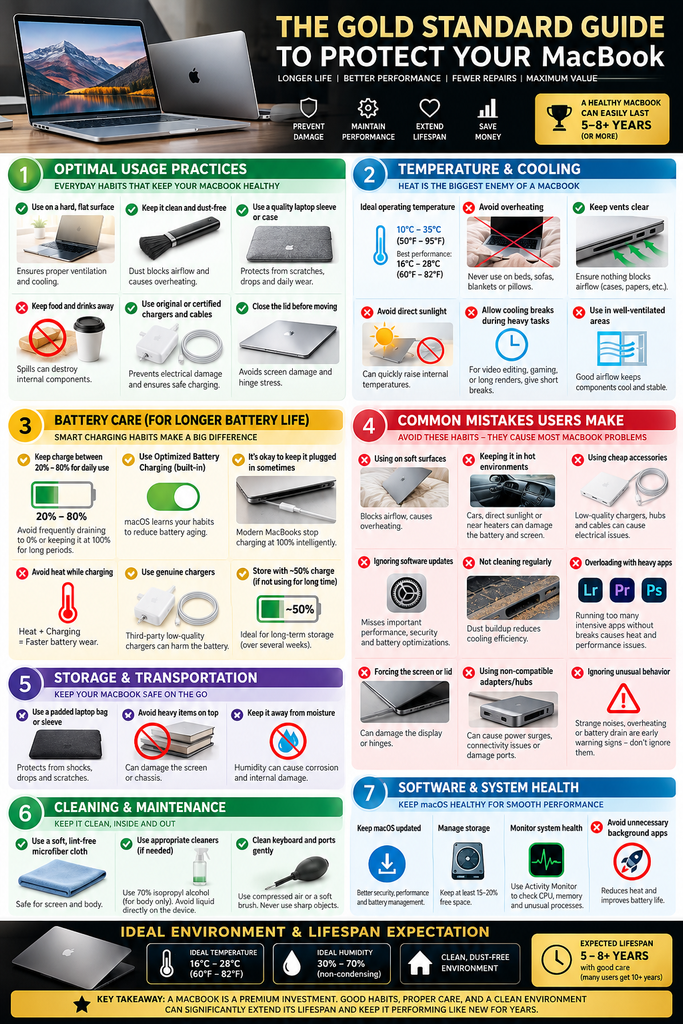
How to Protect a MacBook, Extend Its Useful Life, Prevent Common Failures, and Avoid the Mistakes That Damage MacBooks
Validation date: October 2026
Applies to: MacBook, MacBook Air, and MacBook Pro
Primary focus: Apple silicon MacBooks, with relevant guidance applicable to older Intel models
Purpose: Prevent physical damage, display failure, hinge/lid problems, battery degradation, overheating, liquid damage, charging problems, port damage, and avoidable data loss.
1. Introduction
A MacBook is designed to tolerate years of ordinary use. You should not need to treat it like a fragile museum piece.
However, modern MacBooks achieve their thin design through extremely tight mechanical tolerances. The display, keyboard, camera area, hinges, battery, ports, thermal system, and lid-detection system can therefore be affected by behaviors that appear harmless.
Some of the most expensive MacBook repairs are also among the easiest to prevent:
- cracked or damaged displays;
- liquid-damaged logic boards;
- battery deterioration;
- damaged USB-C/MagSafe ports;
- heat-related problems;
- damaged hinges or display assemblies;
- sleep/wake and lid-sensor problems;
- accidental physical damage during transportation.
This guide focuses on reducing those risks without turning MacBook ownership into an obsessive maintenance routine.
2. Evidence Standard Used in This Guide
Recommendations are classified into three levels.
LEVEL A — Apple-Validated
Directly recommended or documented by Apple.
These recommendations should generally be considered authoritative.
LEVEL B — Engineering / Repair Evidence
Supported by hardware architecture, Apple repair documentation, or reputable repair engineering evidence, but not necessarily stated by Apple as an everyday user recommendation.
LEVEL C — Sensible Precaution
A low-cost precaution based on mechanical or environmental reasoning.
These should not be confused with manufacturer requirements.
3. The 20 MacBook Rules That Matter Most
If you remember nothing else from this guide, remember these.
- Never close your MacBook with anything significant between the keyboard and display.
- Remove keyboard, palm-rest and thick camera covers before closing the lid.
- Keep liquids away from the MacBook.
- Do not spray cleaner directly onto the screen or computer.
- Use a soft, lint-free cloth to clean the display.
- Never force a USB-C, Thunderbolt, HDMI, MagSafe or other connector.
- Keep ports free of debris.
- Use the MacBook on a hard, stable, ventilated surface during sustained workloads.
- Avoid beds, pillows and blankets when the Mac is working hard.
- Avoid prolonged operation in excessive heat.
- Keep Optimized Battery Charging enabled.
- Use Charge Limit where available if the Mac spends most of its life plugged in.
- Don’t deliberately discharge the battery to 0% as a routine.
- Use properly rated USB-C PD chargers and good-quality cables.
- Don’t continue using visibly damaged charging equipment.
- Protect the MacBook from crushing pressure when carrying it.
- Don’t ignore unexpected heat, odors, sleep/wake problems, display anomalies or battery warnings.
- Keep macOS updated.
- Maintain a real backup independent of the Mac’s internal SSD.
- If liquid enters the Mac, immediately stop treating it like a normal computer. Power becomes the enemy.
These rules prevent far more damage than obsessing over whether the battery is at 79% or 81%.
PART I — PROTECTING THE DISPLAY, LID AND HINGES
4. The Display Is One of the Most Vulnerable and Expensive Assemblies
Modern MacBook displays are thin.
More importantly, Apple explicitly states that the clearance between the display and upper case is engineered to very tight tolerances.
That means apparently insignificant objects can become pressure points when the lid closes.
5. Never Close the MacBook With Objects Inside
Risk: 🔴 VERY HIGH
Before closing the MacBook, make sure nothing is lying on:
- the keyboard;
- trackpad;
- palm rest;
- display;
- camera area.
Common offenders include:
- earphones;
- USB cables;
- charging cables;
- pens;
- coins;
- SD cards;
- paper clips;
- crumbs;
- adapters;
- cleaning cloths;
- webcam sliders;
- keyboard covers.
A small hard object trapped between the display and keyboard can concentrate closing force onto a tiny part of the glass.
Best habit
Before closing:
One-second visual check → keyboard clear → close lid.
That single habit may prevent one of the most expensive accidental MacBook failures.
6. Keyboard Covers
Risk when left installed during closing: 🔴 HIGH
Apple specifically instructs users to remove keyboard covers before closing a Mac notebook.
The same recommendation applies to palm-rest covers.
Recommended practice
Using a removable keyboard protector temporarily is different from permanently sandwiching it between the keyboard and screen.
If you use one:
remove it before closing the MacBook.
7. Camera Privacy Covers
Risk: 🔴 HIGH
Apple explicitly warns against closing a MacBook with a camera cover installed.
The problem isn’t primarily the camera.
It is the extremely small clearance between the display and top case.
Apple states that if an environment absolutely requires a camera cover, it should be no thicker than approximately 0.1 mm — about the thickness of ordinary printer paper.
Camera covers can also interfere with:
- ambient-light sensing;
- automatic brightness;
- True Tone.
Better privacy protection
Use:
- macOS camera permissions;
- Apple’s green camera activity indicator.
Avoid thick mechanical webcam sliders.
8. Keep the Keyboard Area Clean
Risk: 🟠 MODERATE
Dust itself usually isn’t catastrophic.
Hard debris is different.
A grain of hard material located at an unfortunate pressure point can potentially mark the screen or keyboard coating.
Recommended habit
Before closing:
- brush obvious debris away;
- don’t close the laptop over crumbs;
- don’t store small items on the keyboard.
You do not need to obsessively clean the machine after every use.
9. Don’t Put Heavy Objects on a Closed MacBook
Risk: 🔴 HIGH
MacBooks contain glass, thin display structures and sensitive internal components.
Apple’s safety documentation warns that MacBooks can be damaged by being dropped, punctured or crushed.
Avoid:
- heavy books on the laptop;
- sitting on a laptop bag;
- forcing an overfilled backpack closed;
- packing the MacBook underneath heavy equipment.
10. Opening and Closing the Lid
Opening and closing the lid normally is expected behavior.
You do not need to be afraid of using the hinge.
However, sensible mechanical habits include:
- don’t violently snap the screen open;
- don’t slam the lid;
- don’t push the display past its natural stopping point;
- don’t carry the MacBook around by holding only the screen.
Opening roughly from the center is a reasonable mechanical precaution because it applies symmetrical force, but there is no strong Apple evidence that opening a MacBook from one corner during ordinary use destroys the hinge.
This is therefore a precaution—not a rule.
11. Hard-Shell Cases: The Nuanced Answer
Internet advice about MacBook cases is often exaggerated.
There is no universal Apple rule saying:
Every hard-shell case destroys MacBook hinges.
However, a badly designed case can potentially:
- interfere with lid movement;
- obstruct ventilation;
- trap dirt against aluminum;
- add mechanical resistance;
- prevent proper closing.
Recommendation
If using a case:
- use one specifically designed for the exact model;
- verify that the screen opens and closes freely;
- verify ventilation isn’t obstructed;
- periodically remove it and clean trapped debris.
Do not confuse a shell attached externally with a keyboard/palm-rest cover trapped inside the closed MacBook. Apple specifically warns about the latter.
PART II — LID SENSORS, MAGNETS AND FALSE SLEEP
12. Understand MacBook Lid Detection
Modern Macs contain hardware responsible for detecting lid position.
Apple’s current repair manuals specifically identify Lid Angle Sensor components in current MacBook Pro and MacBook Air models.
Other Mac generations use magnetic/Hall-effect sensing mechanisms.
Repair documentation also confirms that magnetic fields are involved in lid detection on some MacBook designs.
13. Be Careful With Strong Magnetic Accessories
Risk of permanent damage: generally LOW
Risk of confusing lid detection on certain machines: REAL
Potential sources include:
- magnetic laptop stands;
- magnetic sleeves;
- iPad magnetic cases;
- phones or MagSafe accessories;
- magnetic cable organizers;
- magnetic desk mounts;
- other laptops stacked directly underneath;
- magnetic clasps in bags.
A magnet near the appropriate sensor does not automatically damage a MacBook.
But on applicable designs it can make the computer believe that:
the lid is closed when it is actually open.
Possible symptoms include:
- internal display suddenly turning off;
- unexpected sleep;
- refusal to wake;
- display returning after moving the machine;
- external-display behavior changing unexpectedly.
Troubleshooting rule
If you see unusual lid/sleep behavior:
remove the MacBook from:
- stands;
- cases;
- docks;
- phones;
- tablets;
- magnetic accessories;
and test it alone on a plain desk.
PART III — HEAT AND THERMAL MANAGEMENT
14. Heat Is One of the Major Long-Term Enemies of Electronics and Batteries
MacBooks are designed to run warm.
Feeling heat does not automatically indicate a problem.
Apple states that Mac notebooks contain temperature sensors and, on applicable models, automatically adjust fans to cool components.
The goal is therefore not:
Keep the Mac cold.
The goal is:
Don’t unnecessarily prevent the cooling system from doing its job.
15. Apple’s Recommended Operating Temperature
Apple recommends operating Mac laptops at ambient temperatures of approximately:
10°C–35°C / 50°F–95°F.
Particularly avoid leaving a MacBook in:
- a parked car;
- direct summer sunlight;
- extremely hot rooms;
- enclosed hot bags immediately after sustained workloads.
16. Don’t Use a Hard-Working MacBook on Soft Bedding
Risk: 🟠 MODERATE-HIGH
Apple recommends using a MacBook on a stable work surface that permits ventilation.
Apple specifically advises against using it:
- in bed;
- on pillows;
- under bedding.
A short email session on the couch is not going to instantly destroy a Mac.
The problem is prolonged high-load usage—compilation, virtual machines, video processing, gaming, AI workloads, large builds, etc.—while airflow is unnecessarily restricted.
Ideal
Use:
- desk;
- table;
- solid laptop stand.
17. Do Not Cover the Keyboard During Operation
Apple specifically warns against placing things over the keyboard while the notebook is operating.
This matters particularly during sustained high workloads.
18. Closed-Lid / Clamshell Operation Is NOT Misuse
One very common misconception is:
Using a MacBook with the lid closed and an external monitor damages it.
Apple officially supports external-display use with the notebook lid closed.
For supported operation, Apple specifies conditions such as external power and external keyboard/mouse.
Therefore:
Clamshell mode itself is legitimate use.
Good ventilation remains important, just as it is with the display open.
PART IV — BATTERY LONGEVITY
19. Understand What Actually Ages a MacBook Battery
Lithium-ion batteries chemically age.
Apple explains that chemical aging depends on multiple factors including:
- temperature history;
- charging patterns.
This leads to an important conclusion:
Heat management matters greatly.
Obsessing over individual percentage points matters much less.
20. Enable Optimized Battery Charging
Recommendation: ✅ YES
Apple’s Optimized Battery Charging learns your charging routine and can delay charging beyond approximately 80% when it expects the machine to remain connected to power.
Its purpose is explicitly to reduce battery aging.
Check:
System Settings → Battery → Battery Health / Charging
depending on macOS version and Mac model.
21. Use Charge Limit When Appropriate
Recent macOS/Mac configurations can expose a Charge Limit option.
Apple states that limiting maximum charge can help preserve battery lifespan.
This is especially useful for a MacBook that spends:
- most working days docked;
- most of its life connected to a charger;
- very little time running on battery.
If the feature is available on your Mac, using it is reasonable.
22. Do You Need to Manually Follow a Strict 20%–80% Rule?
No.
There is no need to become a battery percentage accountant.
Modern Macs already perform battery health management.
Avoiding prolonged unnecessary heat and enabling Apple’s battery-management features are more sustainable habits.
A strict manually enforced:
unplug at 80%, charge at 20%, repeat forever
can create inconvenience without proportionate benefit.
23. Don’t Routinely Drain the Battery to 0%
Modern lithium-ion batteries do not require regular complete discharge cycles for memory calibration.
There is therefore no longevity benefit in intentionally running the MacBook flat every day.
Charge it when convenient.
24. Understand Battery Cycles
A battery cycle does not mean:
plugging the charger in once.
Apple counts cumulative use equivalent to 100% of battery capacity.
For example:
50% used one day + 50% another day ≈ one complete cycle.
Apple lists many recent MacBook Pro and MacBook Air batteries with maximum cycle-count specifications of approximately 1,000 cycles.
Apple states that a normal Mac battery is designed to retain up to approximately 80% of its original capacity at its maximum cycle count under normal conditions.
25. Leaving a MacBook Plugged In
Leaving a modern Mac plugged in is not inherently abusive.
macOS battery-health management exists specifically to manage charging behavior.
For machines that remain docked for long periods:
- enable Optimized Battery Charging;
- use Charge Limit if available;
- avoid unnecessary heat.
26. Long-Term MacBook Storage
If storing a MacBook rather than using it:
Apple recommends approximately:
- 50% battery charge;
- a cool environment, ideally around 22°C / 71°F;
- for storage longer than approximately five months, restore the battery to around 50% about every six months.
Don’t store it for months:
- completely discharged;
- continuously exposed to extreme heat.
PART V — CHARGERS, CABLES AND PORTS
27. Use Proper Charging Equipment
USB-C MacBooks do not necessarily require an Apple-branded charger.
Apple confirms that USB-C MacBooks can charge using a USB-C adapter or display supporting USB Power Delivery (USB PD).
Third-party equipment should comply with applicable safety standards.
Gold-standard rule
Use:
- Apple chargers; or
- reputable standards-compliant USB-C PD equipment.
Avoid suspicious ultra-cheap unknown chargers.
28. Use Sufficient Wattage
A lower-power charger may simply charge more slowly.
macOS can display Slow Charger if the supplied power is insufficient for the model.
For normal use, use at least the wattage Apple recommends for the Mac.
29. Inspect Charging Cables
Stop using cables that are:
- frayed;
- crushed;
- burned;
- exposing conductors;
- intermittently disconnecting.
Apple similarly advises inspecting the charger, cable, connector and AC equipment and stopping use if damaged.
30. Don’t Force Connectors
Apple explicitly says:
Never force a connector into a port.
Before inserting one:
- confirm the connector type;
- confirm orientation;
- ensure the port contains no debris.
Repeated lateral pressure from badly positioned docks or cables can also unnecessarily stress connectors.
A short flexible extension cable can sometimes reduce mechanical strain in permanent desk setups.
PART VI — LIQUID DAMAGE
31. Liquid Is Among the Highest-Risk MacBook Accidents
Risk: 🔴 EXTREME
Apple explicitly warns users to keep MacBooks, chargers and cables away from:
- drinks;
- oils;
- lotions;
- sinks;
- rain;
- moisture.
Current MacBooks also contain Liquid Contact Indicators that can assist service technicians in detecting liquid exposure.
32. Best Desk Rule
Don’t put an open drink immediately beside the MacBook.
If you regularly drink while working:
Better
Use a bottle with a sealed lid.
Even better
Keep drinks:
- behind the laptop; or
- on a separate side table;
rather than directly beside the keyboard.
Liquid prevention is vastly easier than liquid repair.
33. What to Do Immediately After a Spill
If significant liquid enters the MacBook:
DO:
- disconnect the charger;
- disconnect peripherals;
- turn the Mac off;
- keep it powered off;
- arrange professional inspection/service.
Repair engineering guidance emphasizes disconnecting electrical power because current combined with conductive liquid can accelerate shorting and corrosion.
DO NOT:
- repeatedly try to turn it on;
- keep checking whether it still works;
- reconnect the charger;
- assume it is safe because the screen still works;
- put it in rice.
Liquid-related corrosion can continue even when the computer initially appears functional.
PART VII — CLEANING
34. Correct MacBook Cleaning Procedure
Before significant cleaning:
- shut down the Mac;
- disconnect the power adapter;
- disconnect accessories.
Apple recommends a:
clean, soft, lint-free cloth.
35. Cleaning the Display
For normal cleaning:
- shut down;
- unplug;
- lightly dampen a soft lint-free cloth with water;
- gently wipe the display.
Never spray liquid directly onto the screen.
Apple permits a cloth moistened with 70% isopropyl alcohol for hard-to-remove smudges or fingerprints on supported Mac displays/enclosures.
Nano-texture displays have special cleaning guidance and should follow Apple’s model-specific instructions.
36. Avoid These Cleaning Mistakes
Don’t use:
- abrasive cloth;
- kitchen paper/tissue as your routine display cleaner;
- aerosol spray;
- bleach;
- abrasive cleaner;
- hydrogen-peroxide cleaner;
- liquid sprayed directly onto the laptop.
Don’t aggressively scrub the display.
Gentle cleaning beats frequent forceful cleaning.
PART VIII — TRANSPORTING A MACBOOK
37. Use a Proper Laptop Compartment
A good laptop bag should protect against:
- impact;
- bending;
- compression;
- loose objects.
Use a dedicated padded compartment where possible.
38. Don’t Overpack the Bag
One of the easiest ways to accidentally apply pressure to a display is placing a MacBook inside a heavily compressed backpack.
Avoid:
- books pressing strongly against the display;
- chargers directly against the laptop;
- forcing zippers closed around an overfilled compartment.
39. Watch for Loose Metal Objects
Apple specifically warns that loose items such as:
- coins;
- paper clips;
can enter openings or become lodged in USB-C ports while the Mac is carried.
Use separate pockets for small accessories.
40. Temperature During Transportation
Don’t leave the MacBook for extended periods inside a hot car.
Apple’s operating range is roughly 10°C–35°C, while model-specific storage ranges may be wider.
If the Mac has become extremely hot or cold, allow it to return toward normal operating conditions before heavy use.
PART IX — SLEEP, SHUTDOWN AND DAILY USAGE
41. Do You Need to Shut Down Every Day?
No.
Normal sleep is a supported Mac operating mode.
There is no requirement to shut down a healthy modern Mac after every work session.
Restart occasionally when:
- troubleshooting;
- macOS requests it;
- sleep/wake behavior becomes abnormal;
- a process appears stuck;
- the machine behaves unusually.
Apple recommends checking software and background processes when Macs sleep or wake unexpectedly.
42. Before Putting a Hot Mac Into a Bag
Normal sleep is fine.
However, if the computer:
- is unusually hot;
- is still doing a heavy workload;
- has a known sleep/wake problem;
wait until the workload stops and confirm it has actually entered sleep before placing it in an enclosed bag.
If you already know the Mac sometimes wakes unexpectedly in a bag, shutting it down during transport is a reasonable temporary precaution until the root cause is fixed.
PART X — SOFTWARE IS ALSO MAINTENANCE
43. Keep macOS Updated
Apple recommends using the latest compatible macOS because updates improve:
- security;
- stability;
- compatibility.
Firmware and system-level fixes can also resolve behaviors that appear hardware-related.
Recommended
Enable normal software-update notifications and avoid remaining several major releases behind without a specific operational reason.
PART XI — BACKUPS ARE PART OF LAPTOP PROTECTION
44. Protecting the Mac Is Not Enough
A MacBook can always be:
- stolen;
- dropped;
- flooded;
- lost;
- destroyed;
- rendered uneconomical to repair.
Hardware can be replaced.
Unique data may not be.
Use Time Machine or another proper backup system.
Apple’s Time Machine can automatically maintain hourly, daily and weekly backups depending on configuration.
Apple recommends a Time Machine device ideally having at least roughly twice the capacity of the Mac’s internal storage.
For important data, use an independent copy—not merely another folder on the same internal SSD.
PART XII — EARLY WARNING SIGNS
45. Don’t Ignore These Symptoms
Investigate if you repeatedly notice:
Display
- flickering;
- black screen;
- image changes with lid angle;
- lines or artifacts;
- backlight anomalies;
- internal display disappearing unexpectedly.
Lid / Sleep
- Mac thinks the lid is closed while open;
- wakes or sleeps unpredictably;
- display shuts off around magnetic accessories.
Thermal
- unusually high temperature while idle;
- fans running constantly without workload;
- unusual smell;
- unusual vibration/noise.
Apple repair manuals specifically include troubleshooting sections for unusual warmth, odors, noise and vibration.
Battery
- battery health reports Service Recommended;
- rapidly decreasing capacity;
- abnormal charging behavior.
Apple recommends checking Battery Health and using Apple Diagnostics when appropriate.
Chassis
- Mac no longer sits flat;
- bottom case appears distorted;
- trackpad behaves mechanically differently.
Those deserve inspection rather than being ignored.
PART XIII — APPLE DIAGNOSTICS
46. Use Apple Diagnostics When Hardware Behavior Is Suspicious
Apple Diagnostics can help identify hardware components related to a problem.
Apple recommends:
- updating macOS where possible;
- shutting down;
- disconnecting unnecessary peripherals;
- placing the computer on a stable, ventilated surface;
- running Apple Diagnostics.
It is particularly useful when investigating:
- battery problems;
- unexpected shutdown;
- hardware warnings;
- suspected component faults.
Diagnostics cannot detect every intermittent physical problem, so a clean result does not prove that every component is healthy.
PART XIV — THE MOST COMMON USER MISTAKES
MacBook Damage Risk Matrix
| Mistake | Risk |
|---|---|
| Closing lid over camera slider | 🔴 Critical |
| Closing lid over keyboard cover | 🔴 Critical |
| Closing laptop with an object on keyboard | 🔴 Critical |
| Liquid beside/open above laptop | 🔴 Critical |
| Continuing to power a liquid-damaged Mac | 🔴 Critical |
| Severe pressure in overloaded backpack | 🔴 High |
| Dropping or crushing MacBook | 🔴 High |
| Using damaged electrical/charging equipment | 🔴 High |
| Regular heavy workloads on blankets/pillows | 🟠 High |
| Leaving Mac in very hot vehicle | 🟠 High |
| Spraying cleaner directly onto display | 🟠 High |
| Forcing USB-C/other connectors | 🟠 High |
| Ignoring abnormal battery/chassis behavior | 🟠 High |
| Unknown-quality charger | 🟠 Moderate-high |
| Keeping hard debris between keyboard/screen | 🟠 Moderate-high |
| Ignoring persistent abnormal heat | 🟠 Moderate |
| Magnetic accessories causing false lid detection | 🟠 Situational |
| Leaving battery-management features disabled | 🟡 Moderate |
| Constantly charging manually from 20→80 | 🟢 Mostly unnecessary |
| Sleeping Mac instead of shutting down | 🟢 Normal |
| External monitor with lid closed | 🟢 Supported |
| Leaving Mac connected to power | 🟢 Normally fine with battery management |
| Opening lid normally many times per day | 🟢 Normal usage |
PART XV — MACBOOK MYTHS VS FACTS
Myth 1: “Always discharge the MacBook battery before charging.”
False.
Lithium-ion batteries do not need this.
Myth 2: “Never leave a MacBook plugged in.”
False as a general rule.
Modern macOS includes battery health management and optimized charging.
Myth 3: “You must manually keep the battery between exactly 20% and 80%.”
Overstated.
Reasonable charge limits can improve longevity, but Apple’s own charging-management system already handles battery aging intelligently.
Myth 4: “Closed-lid external-monitor use damages the Mac.”
False.
Apple explicitly supports it under the appropriate conditions.
Myth 5: “A MacBook should be shut down every night.”
Not necessary.
Sleep is normal operation.
Myth 6: “All MacBook cases damage the hinge.”
Not established.
Poorly designed accessories can interfere with operation, but there is no universal rule that every external protective shell damages MacBooks.
Myth 7: “A keyboard protector is always safe because it is soft.”
False when closed inside the machine.
Apple specifically instructs users to remove keyboard and palm-rest covers before closing the display.
Myth 8: “Camera sliders are harmless.”
False.
Apple specifically warns about display damage from camera covers that interfere with the MacBook’s tight display clearance.
Myth 9: “If a spilled-on Mac still works, no damage happened.”
Dangerous assumption.
Corrosion can continue after liquid exposure, and failures can appear later.
Myth 10: “Rice repairs liquid-damaged electronics.”
False.
Disconnecting electrical power and obtaining proper inspection is far more important. Repair guidance specifically advises against relying on rice.
PART XVI — THE GOLD-STANDARD MACBOOK DAILY ROUTINE
Beginning of the Day
No special ritual required.
Quickly check:
- charger/cable looks healthy;
- machine behaves normally;
- no abnormal battery or temperature warning.
During Work
Keep:
- ventilation available;
- liquids away;
- cables positioned without excessive strain.
For desk-heavy users:
- external monitor is fine;
- clamshell mode is fine;
- docking is fine;
- remaining connected to power is fine.
Enable battery-health features.
Before Closing the Lid
Perform the three-second closing check:
CLEAR → CLEAN → CLOSE
CLEAR:
Nothing on keyboard/palm rest.
CLEAN:
No obvious hard debris.
CLOSE:
Close normally without forcing.
Before Transport
Check:
- lid fully closed;
- no cable trapped inside;
- laptop not excessively hot;
- dedicated padded compartment;
- no heavy object pressing against screen;
- charger stored separately where practical.
PART XVII — WEEKLY / MONTHLY / QUARTERLY MAINTENANCE
Weekly
Approximately once a week:
- wipe obvious dirt;
- inspect charging cable;
- inspect ports visually;
- clean obvious keyboard debris.
No disassembly required.
Monthly
Check:
System Settings → Battery
Review:
- Battery Health;
- charging behavior;
- unusual battery warnings.
Also verify:
- macOS update status;
- backup status;
- no unexplained sleep/wake behavior.
Every 3–6 Months
Inspect:
- MagSafe/USB-C cable condition;
- port looseness or contamination;
- case and sleeve;
- display surface;
- hinge behavior;
- battery condition;
- Time Machine restore availability.
If you use a shell case, remove it periodically and clean trapped debris.
Annually
Consider:
- reviewing battery cycle count;
- confirming maximum battery capacity;
- testing backups;
- running Apple Diagnostics if any symptoms exist;
- checking AppleCare/warranty status;
- inspecting frequently used cables and adapters.
There is no requirement to replace parts annually simply as preventative maintenance.
PART XVIII — EMERGENCY PLAYBOOKS
Scenario A — Liquid Spill
Immediately:
UNPLUG → POWER OFF → DISCONNECT ACCESSORIES → DON’T RESTART → SERVICE
Do not keep testing whether it still works.
Scenario B — Internal Display Suddenly Black
Check:
- brightness;
- external display behavior;
- charger;
- restart if appropriate;
- remove magnetic accessories/cases/stands;
- test lid behavior;
- run diagnostics or seek service if persistent.
Scenario C — Mac Thinks Lid Is Closed While Open
Remove:
- magnetic case;
- magnetic phone/accessory;
- stand;
- tablet;
- dock;
- laptop stacked underneath.
Place Mac alone on plain desk.
If the condition persists, investigate the lid-angle/lid-detection hardware.
Current Apple repair manuals explicitly list Lid Angle Sensors as service components on modern models.
Scenario D — Mac Becomes Extremely Hot
Move it to:
- room-temperature environment;
- hard ventilated surface.
Check Activity Monitor for unexpected CPU activity.
Apple specifically recommends checking CPU activity when unexpected heat/fan activity persists.
If abnormal heat persists while idle, investigate further.
Scenario E — Charger or Cable Becomes Damaged
Stop using the damaged component.
Replace it with:
- correct Apple equipment; or
- reputable USB-C PD equipment meeting applicable standards.
PART XIX — IDEAL MACBOOK WORKSPACE
A high-longevity setup looks surprisingly simple:
Laptop
MacBook on:
- desk;
- solid stand;
- stable surface.
Power
Quality:
- charger;
- cable;
- power connection.
Drinks
Sealed bottle away from laptop.
External Display
Supported and safe.
Keyboard/Mouse
External peripherals can reduce wear on the built-in keyboard/trackpad, although this is optional rather than necessary.
Environment
Prefer:
10°C–35°C
with reasonable ventilation.
PART XX — THE MACBOOK LONGEVITY PRIORITY PYRAMID
If you want a MacBook to last five or more years, prioritize protection in this order:
LEVEL 1 — Prevent Catastrophic Damage
Protect against:
LIQUID
DROP
CRUSHING
DISPLAY PRESSURE
These can kill a MacBook instantly.
LEVEL 2 — Control Heat
Protect against:
BLOCKED AIRFLOW
EXTREME TEMPERATURE
CHRONIC UNNECESSARY HEAT
LEVEL 3 — Protect the Battery
Use:
OPTIMIZED CHARGING
CHARGE LIMIT WHERE APPROPRIATE
TEMPERATURE MANAGEMENT
LEVEL 4 — Protect Mechanical Components
Protect:
HINGES
PORTS
CABLES
DISPLAY
KEYBOARD
from unnecessary mechanical stress.
LEVEL 5 — Maintain Software and Data
Use:
MACOS UPDATES
BACKUPS
DIAGNOSTICS
EARLY TROUBLESHOOTING
21. The Most Important Principle
MacBook longevity does not require obsessive behavior.
You do not need to:
- constantly shut it down;
- unplug the charger every hour;
- watch the battery percentage all day;
- avoid using external displays;
- avoid opening the lid;
- monitor dozens of temperature sensors.
Instead, concentrate on the failure modes that actually matter:
Pressure + Liquid + Heat + Poor Charging Equipment + Mechanical Abuse + Ignored Warning Signs.
Prevent those six categories and you eliminate a large proportion of preventable MacBook problems.
22. The 10-Second MacBook Protection Checklist
Before closing or carrying your MacBook, remember:
SCREEN
Nothing trapped inside.
LID
Closes freely.
LIQUID
None nearby.
HEAT
Machine isn’t being suffocated.
BATTERY
Optimized Charging enabled.
CHARGER
Good-quality and undamaged.
PORTS
Never forced.
BAG
No crushing pressure.
SOFTWARE
Updated.
DATA
Backed up.
FINAL GOLDEN RULE
Treat the MacBook normally—but remove abnormal stress.
A MacBook is built to:
OPEN
CLOSE
SLEEP
WAKE
CHARGE
RUN ON BATTERY
USE EXTERNAL DISPLAYS
TRAVEL
WORK FOR HOURS
Those activities are normal.
What it is not designed for is:
LIQUID INSIDE
OBJECTS BETWEEN SCREEN AND KEYBOARD
EXCESSIVE PRESSURE
BLOCKED COOLING
EXTREME HEAT
DAMAGED ELECTRICAL EQUIPMENT
FORCED CONNECTORS
Protect it from those conditions, respond early to unusual symptoms, maintain a real backup, and let macOS handle much of the battery and power management it was designed to handle.
That is a far better long-term MacBook preservation strategy than following dozens of internet myths.