
Last updated: October 31, 2026
Reading time: 12–15 minutes
Category: Apple MacBook Accessories | Buying Guides | Laptop Maintenance
1. Introduction: Can a Keyboard Cover Protect Your MacBook or Damage It?
MacBook keyboard covers are popular accessories designed to protect keyboards from dust, dirt, fingerprints, food particles, and accidental spills.
Available in silicone, TPU (thermoplastic polyurethane), and other flexible materials, these covers are often marketed as ultra-thin, washable, reusable, and compatible with Apple’s latest MacBook Air and MacBook Pro models.
Some manufacturers advertise thicknesses as low as 0.03 mm or 0.12 mm, suggesting their products add almost no bulk.
But there is an important question every MacBook owner should ask:
Can leaving a keyboard cover installed damage the display when the MacBook lid is closed?
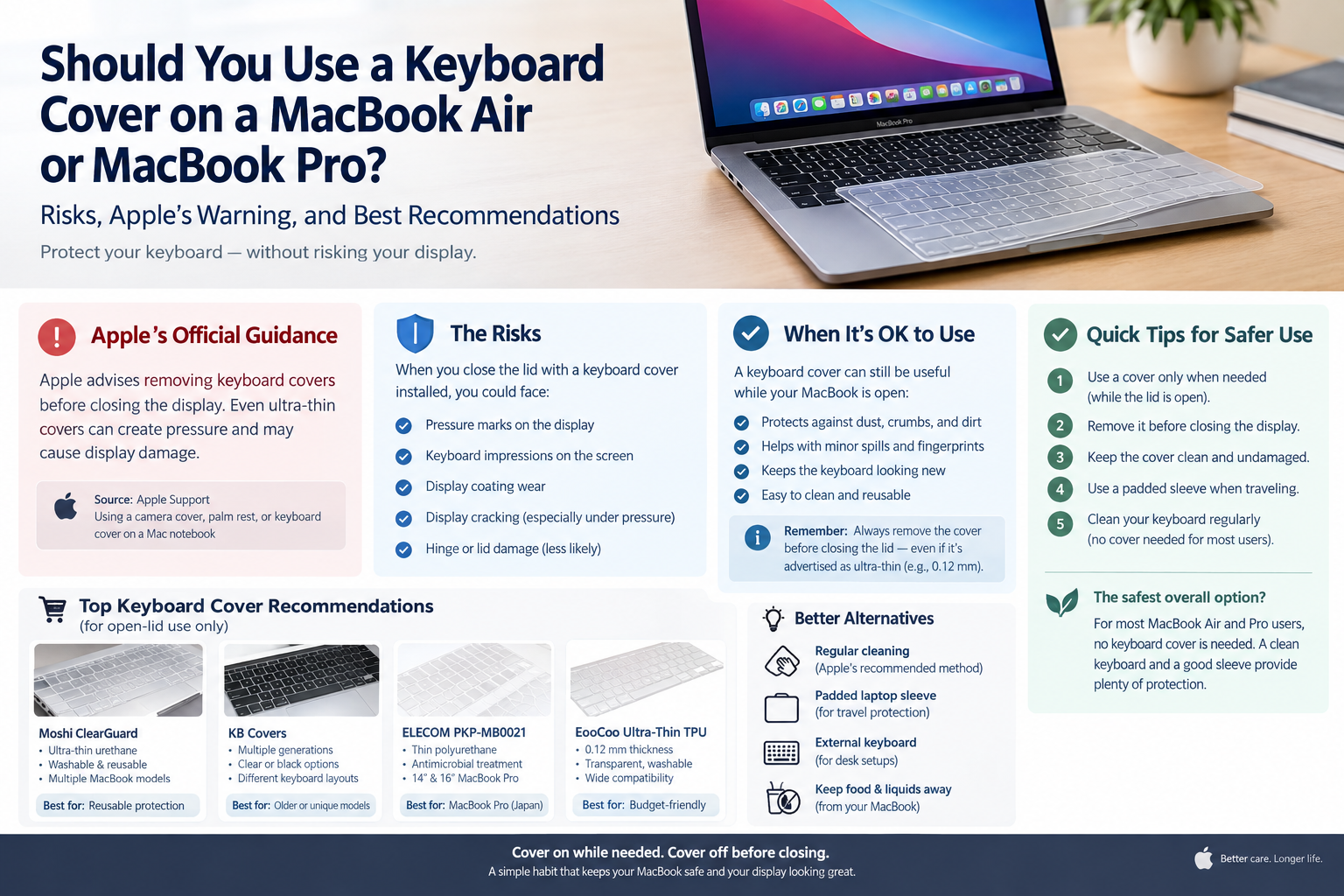
According to Apple, the answer is yes: keyboard covers can interfere with the tightly engineered space between the keyboard and display and potentially cause damage.
This guide examines Apple’s official recommendations, the risks associated with different keyboard-cover materials, available products, and the best ways to protect your MacBook without unnecessarily risking its display.
Quick verdict
| Question | Recommendation |
|---|---|
| Should every MacBook owner use a keyboard cover? | No. Most users do not need one. |
| Is a keyboard cover useful while typing? | Potentially, especially in dusty environments. |
| Can I close my MacBook with a cover installed? | Not recommended by Apple. |
| Is a 0.12 mm TPU cover safe when closed? | Not guaranteed. Remove it first. |
| Are expensive keyboard covers automatically safer? | No. Price does not establish screen clearance. |
| Can a cover prevent liquid damage completely? | No. It offers limited protection. |
| What is the safest overall option? | Use the keyboard without a cover and clean it regularly. |
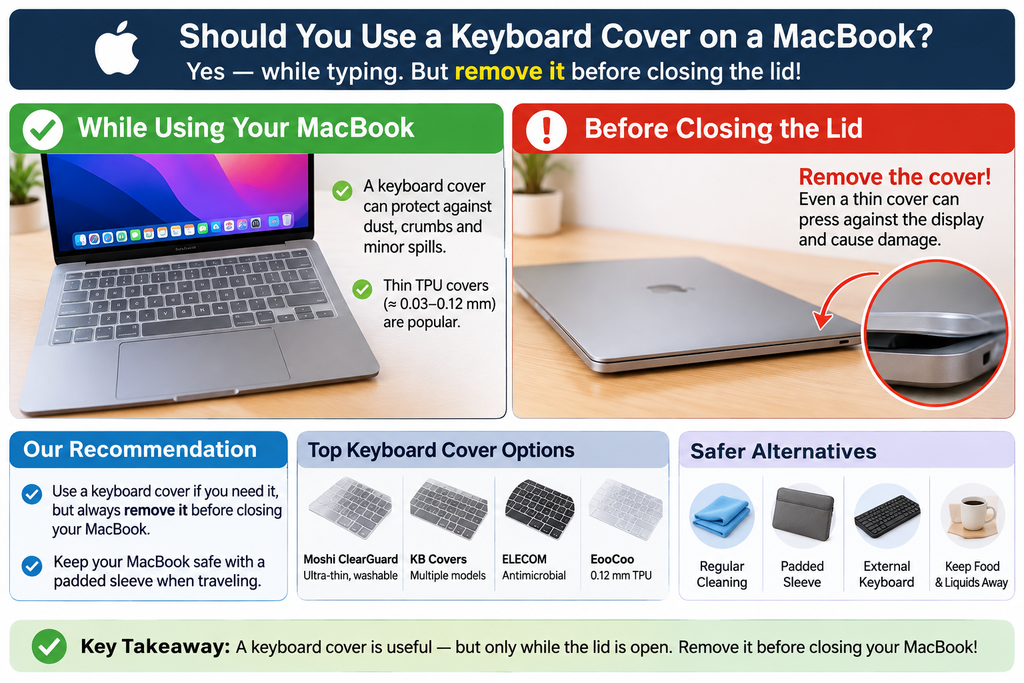
Overall recommendation: If you need a keyboard cover, use a removable model while your MacBook is open. Remove it before closing the display.
2. What Does Apple Officially Say About Keyboard Covers?
Apple has published specific instructions concerning keyboard covers, camera covers, and palm-rest covers.
In its support article Using a camera cover, palm rest, or keyboard cover on a Mac notebook, Apple instructs users to remove these accessories before closing the display.
The reason is simple.
MacBook laptops are manufactured with extremely tight tolerances between the display and the keyboard assembly.
Any additional material inside that space can interfere with normal closure.
Why does the small gap matter?
When a MacBook is closed, the display rests extremely close to the keyboard and surrounding aluminum body.
Adding even a thin layer of material changes the available space.
The potential risks increase when:
- The cover is thicker than advertised or not uniformly flat.
- Dust or other particles become trapped against the display.
- The MacBook is compressed inside a backpack.
- Heavy objects press against the closed computer.
- The cover becomes distorted, folded, or incorrectly positioned.
An ultra-thin keyboard cover may look harmless, but appearance alone cannot establish whether the accessory is safe when the display is closed.
Apple does not provide a general keyboard-cover thickness threshold that guarantees safe closed-lid use.
Official Apple source: Using a camera cover, palm rest, or keyboard cover on a Mac notebook
Does Apple’s warning apply to both MacBook Air and MacBook Pro?
Yes.
The guidance applies to Mac notebooks generally, including:
- MacBook Air 13-inch and 15-inch models
- MacBook Pro 13-inch, 14-inch, and 16-inch models
- Apple silicon MacBooks using M-series processors
- Older Intel-based MacBook models
Different generations have different keyboard and chassis designs, but none should be assumed safe for closed-lid keyboard-cover use simply because of its age or size.
3. What Could Happen If You Close a MacBook With a Keyboard Cover?
Not every MacBook closed with a keyboard cover will suffer damage.
Some users report using covers for extended periods without obvious problems.
However, the absence of immediate damage does not prove that repeated closed-lid use is safe.
Here are the main concerns.
| Potential problem | What may happen | Assessment |
|---|---|---|
| Keyboard-shaped screen marks | Oil, residue, or pressure-related impressions may appear on the display | Possible |
| Display coating damage | Repeated contact or trapped particles may contribute to surface wear | Possible |
| Display cracking | Concentrated pressure may damage the display assembly | Possible, potentially serious |
| Screen discoloration or lines | Physical display damage may produce visible abnormalities | Possible |
| Typing discomfort | A cover changes key feel and feedback | User-dependent |
| Dirt accumulation | Dust and oils may build up on or beneath the cover | Maintenance concern |
| Hinge resistance | A poorly fitting accessory may interfere with lid closure | Secondary concern |
Are all keyboard marks permanent?
No.
There is an important difference between ordinary smudges and physical display damage.
Fingerprint oil and transferable residue may be removable using Apple’s recommended cleaning methods.
Scratches, coating wear, or internal display damage may not be removable by cleaning.
A keyboard-shaped pattern on a display is not enough to diagnose permanent damage without further inspection.
What do actual MacBook owners report?
Community discussions on MacBook forums and Reddit contain mixed experiences.
Some people report years of keyboard-cover use without noticeable damage.
Others describe persistent key-shaped marks, display pressure marks, or damaged screens after closing laptops with covers installed.
Examples include discussions in r/macbookpro and r/macbookair.
These reports are anecdotal. They cannot establish how frequently damage occurs or prove that a keyboard cover caused every reported problem.
Nevertheless, they illustrate why Apple’s precautionary recommendation deserves attention.
4. Understanding the Different Types of MacBook Keyboard Covers
Not all keyboard protectors are made from the same materials.
Different materials influence transparency, durability, typing comfort, and ease of cleaning.
| Cover type | Advantages | Disadvantages | Recommendation |
|---|---|---|---|
| Ultra-thin TPU | Flexible, transparent, lightweight, often washable | May wrinkle, collect debris, or contact the display | Consider for open-lid use |
| Silicone | Soft, flexible, available in multiple colors | May alter typing feel and add noticeable thickness | Less attractive for frequent typists |
| Polyurethane film | Thin, lightweight, often transparent | Durability and fit depend on the specific product | Consider for open-lid use |
| Individual key stickers | Minimal coverage, may help preserve key legends | Adhesive residue, wear, and added key height remain concerns | Evaluate carefully |
| Full keyboard-and-palm-rest cover | Wider surface protection | Covers more areas that may interfere with the display | Remove before closing |
| No keyboard cover | Original typing experience, no additional accessory between the keyboard and display | Requires normal cleaning | Best for most users |
TPU versus silicone: Which is better?
TPU covers are often designed to be thin and transparent, preserving the keyboard’s appearance and backlighting.
Silicone covers may feel softer and are commonly available in decorative colors.
However, thickness and typing feel vary by product. Material alone does not determine safety.
An exceptionally thin silicone product can differ substantially from a thick silicone cover, just as one TPU protector may be significantly thinner than another.
For either material, the manufacturer’s thickness measurement should not be treated as proof that the accessory is safe when the MacBook is closed.
5. Keyboard Cover Product Recommendations for MacBook Air and MacBook Pro
Several established accessory brands sell keyboard protectors for MacBooks.
The following comparison is based on published manufacturer specifications and compatibility information rather than independent laboratory testing.
Important: These are options to consider for open-lid use. None is recommended for remaining installed when the MacBook is closed.
Product comparison
| Product | Notable features | Best suited for | Main limitation |
|---|---|---|---|
| Moshi ClearGuard | Ultra-thin urethane, washable, reusable, multiple MacBook layouts | Users seeking a reusable, model-specific cover | Must be removed before closing |
| KB Covers Protection Keyboard Cover | Various MacBook generations, clear and black-key styles, multiple layouts | Owners of newer or older MacBooks | Exact model selection is essential |
| ELECOM PKP-MB0021 | Thin polyurethane, clear design, antimicrobial treatment | Compatible MacBook Pro users, particularly in Japan | Pro-specific compatibility |
| EooCoo Ultra-Thin TPU | Advertised 0.12 mm thickness, transparent, washable | Budget-conscious buyers seeking a removable cover | Thickness does not guarantee display safety |
| Sanwa Supply FA-NMACBP | Advertised 0.03 mm polyurethane, covers keyboard and palm-rest area | Users evaluating extremely thin full-surface films | Manufacturer’s closed-lid claim conflicts with Apple’s general precaution |
5.1 Moshi ClearGuard — An option for washable, reusable protection
Moshi ClearGuard is marketed as an ultra-thin keyboard protector made from engineering-grade urethane.
Its published features include:
- Protection against everyday dust, crumbs, stains, and minor spills
- Transparent construction
- Washable and reusable material
- Model-specific fitting
- Several keyboard-layout options
Moshi lists variants for multiple MacBook Air and Pro generations, including Japanese and US keyboard layouts.
Recommendation: Worth considering if you specifically need a reusable protector while working. Remove it before closing the MacBook.
5.2 KB Covers Protection Keyboard Cover — An option for multiple generations
KB Covers provides keyboard protectors for several MacBook generations.
Its product selector distinguishes newer Apple silicon designs from older Intel-based models.
It also provides different keyboard-layout options.
This matters because two laptops with similar screen sizes may have different key arrangements.
Recommendation: A useful product line to investigate when looking for a cover for an older MacBook or an uncommon keyboard configuration.
5.3 ELECOM PKP-MB0021 — A Japan-focused MacBook Pro option
ELECOM PKP-MB0021 is a thin polyurethane keyboard protector marketed for compatible 14-inch and 16-inch MacBook Pro models.
Its published features include a transparent design, an opening for Touch ID, and an antimicrobial treatment.
ELECOM maintains compatibility information for supported models.
Recommendation: A practical option to evaluate for a compatible MacBook Pro, particularly when shopping in Japan. Verify the exact keyboard layout and model before purchase.
5.4 EooCoo Ultra-Thin TPU — A budget-oriented example
One example is the EooCoo keyboard protector, Amazon ASIN B09KLV33M4.
The product is advertised as having:
- Approximately 0.12 mm thickness
- TPU construction
- High transparency
- Washable and reusable material
- Protection against everyday keyboard contamination
Its thinness may make it attractive to people who dislike bulky silicone covers.
However, the manufacturer’s thickness specification does not override Apple’s instructions.
Recommendation: Reasonable to consider as a removable cover for compatible models, but not for permanent installation during closed-lid use.
5.5 Sanwa Supply FA-NMACBP — Why thinner does not necessarily mean safe to close
An interesting example is Sanwa Supply FA-NMACBP.
The manufacturer advertises a 0.03 mm polyurethane cover for certain 14.2-inch MacBook Pro models.
Unlike some other products, its marketing explicitly describes closing the laptop with the cover attached.
However, Apple’s general recommendation is still to remove keyboard and palm-rest covers before closing the display.
This creates a distinction between a manufacturer’s compatibility claim and Apple’s device-safety guidance.
Our recommendation is to follow Apple’s more conservative advice.
Even a manufacturer claim of closed-lid compatibility should not be interpreted as an Apple endorsement or a guarantee against display damage.
6. Is an Ultra-Thin 0.03 mm, 0.1 mm, or 0.12 mm Cover Safe?
This is one of the most important questions when comparing MacBook keyboard protectors.
Thickness matters, but there is no published Apple-approved threshold that makes leaving a keyboard cover installed safe.
Consider these examples.
| Advertised thickness | What it tells you | Safe to leave installed when closed? |
|---|---|---|
| 0.03 mm | Very thin material | Not established by Apple’s guidance |
| 0.10 mm | Thin material | Not established by Apple’s guidance |
| 0.12 mm | Ultra-thin material | Not established by Apple’s guidance |
| 0.20 mm | Additional thickness | Not recommended |
| 0.30 mm or thicker | Greater potential for interference | Not recommended |
These numbers refer to advertised product thickness, not measured clearance inside a particular MacBook.
There is also an important distinction concerning Apple’s camera-cover instructions.
Apple separately discusses a 0.1 mm thickness guideline for camera covers in specific circumstances.
That camera-cover guideline is not a universal safety threshold for keyboard covers.
It would be incorrect to conclude that a 0.1 mm keyboard cover is automatically safe to leave installed.
7. Are Keyboard Covers Recommended for MacBook Air?
MacBook Air owners often purchase keyboard covers to avoid dust, stains, or visible wear.
However, MacBook Air models also have tightly engineered screen-to-keyboard clearance.
This makes Apple’s warning particularly relevant.
For a MacBook Air used in a clean home or office environment, a keyboard cover is generally unnecessary.
For someone using a MacBook Air in a dusty environment, a removable protector may offer practical benefits while the laptop is open.
Recommended approach for MacBook Air
| Usage scenario | Recommendation |
|---|---|
| Home office | No cover needed |
| Regular office work | No cover needed |
| Dusty working environment | Removable protector may help |
| Frequent travel | No protector inside the closed laptop; use a padded sleeve |
| Public café | Prioritize keeping liquids away |
| Student carrying a backpack | Remove the cover before closing and transporting |
| Long typing sessions | Prefer the original keyboard unless protection is essential |
The most important precaution is to keep the space between the keyboard and screen free from additional accessories before closing the laptop.
8. Are Keyboard Covers Recommended for MacBook Pro?
MacBook Pro owners should take the same precautions.
This applies to 14-inch and 16-inch MacBook Pro models, including Apple silicon generations.
The MacBook Pro’s premium display makes avoiding unnecessary pressure particularly important.
For MacBook Pro 16-inch owners
A cover marketed as compatible with a 16-inch MacBook Pro is not necessarily compatible with every 16-inch generation.
For example, the 2019 Intel-based model differs from later Apple silicon designs.
Keyboard layouts and function-key arrangements may also differ across generations.
Before purchasing, verify:
- MacBook Pro screen size
- Exact model and release year
- Processor generation
- Keyboard layout
- Touch ID and function-key arrangement
- Manufacturer compatibility information
The safest daily-use option remains the uncovered keyboard.
If dust or contamination is a significant concern, a removable protector may be useful while typing.
9. How to Choose the Right MacBook Keyboard Cover
If you decide to purchase a keyboard protector, evaluate more than thickness and price.
Check the exact MacBook model
Select Apple Menu → About This Mac to identify the model and chip.
If needed, use Apple’s official model-identification documentation to find the precise generation.
Reference: Apple’s MacBook Pro model identification guide
Verify keyboard layout
MacBooks may have different keyboard configurations depending on the country where they were purchased.
Common layouts include:
- US ANSI
- Japanese JIS
- European ISO
A cover with the wrong layout may not fit properly.
This is especially important for users who purchased their MacBook in Japan.
Choose a cover that is easy to remove
Because Apple recommends removing covers before closing the lid, an accessory should be easy to install and remove without damaging keys.
Avoid products that require complicated attachment methods or leave adhesive residue.
Prefer accurate fit over marketing claims
An advertised thickness of 0.03 mm or 0.12 mm is useful product information.
However, fit, material behavior, transparency, cleaning requirements, and reliable model compatibility also matter.
Inspect the cover regularly
Replace or stop using a cover if it becomes:
- Warped or stretched
- Torn or cracked
- Permanently sticky
- Difficult to clean
- Poorly aligned with the keyboard
Do not assume that an accessory remains suitable indefinitely.
10. Better Alternatives to Keyboard Covers
For many MacBook owners, the safest solution is not purchasing a keyboard cover at all.
Several alternatives can help protect the device without adding material between the closed keyboard and screen.
Alternative 1: Regular keyboard cleaning
This is the simplest and most practical approach.
Apple recommends using a soft, lint-free cloth and avoiding excessive moisture.
For MacBook keyboards:
- Shut down the computer before cleaning.
- Disconnect the power adapter.
- Use a clean, soft, lint-free cloth.
- Avoid spraying cleaning liquid directly onto the keyboard.
- Keep liquid out of the openings.
- Follow Apple’s material-specific cleaning instructions.
Apple also provides compressed-air cleaning instructions for certain MacBook keyboards when keys become unresponsive or feel unusual.
Reference: Apple’s cleaning recommendations
Alternative 2: Use a padded laptop sleeve
A properly fitting padded sleeve can protect the outside of a MacBook during travel.
It can help reduce scratches and provide cushioning against normal handling.
However, a sleeve does not make the laptop immune to crushing pressure.
Avoid packing heavy objects tightly against the display.
Alternative 3: Use an external keyboard
For users who spend most of their time working at a desk, an external keyboard can reduce usage and wear on the built-in keyboard.
This option is particularly useful when the MacBook is connected to an external monitor.
An external keyboard also allows users to replace or clean the keyboard independently of the laptop.
Alternative 4: Improve the working environment
Keep food, liquids, and dust away from the computer wherever practical.
Simple habits may provide more dependable protection than a keyboard cover alone.
Do not rely on a keyboard protector to make a MacBook spill-proof.
Alternative comparison
| Alternative | Keyboard protection benefit | Display interference concern | Overall recommendation |
|---|---|---|---|
| Regular cleaning | Removes accumulated contamination | None from an installed accessory | Excellent |
| Padded laptop sleeve | Protects during transport | No added material inside the closed laptop | Excellent |
| External keyboard | Reduces built-in keyboard usage | None | Excellent for desk setups |
| Removable TPU cover | Helps block everyday dirt while installed | Possible if left on when closed | Conditional |
| Permanent silicone keyboard cover | Helps protect key surfaces | Possible if left on when closed | Not preferred |
| Cloth left between keyboard and screen | May reduce direct contact | Introduces additional material | Avoid as a routine practice |
11. How to Use a MacBook Keyboard Cover More Safely
If you already own a keyboard protector, you do not necessarily need to throw it away.
You can reduce the risks by adopting a simple routine.
Step 1: Install the cover only when necessary.
Make sure the keyboard and cover are clean, and confirm that the accessory lies flat.
Step 2: Use the MacBook normally while the lid remains open.
Check that the cover does not interfere with key operation or Touch ID.
Step 3: Remove the cover before closing the display.
Do this even if the product is advertised as ultra-thin.
Step 4: Store the cover separately.
Keep it clean and away from sharp objects, excessive heat, and dirt.
Step 5: Close the MacBook normally.
Never force the lid shut or try to compensate for an accessory that interferes with closure.
Step 6: Use suitable protection when traveling.
Place the closed MacBook in a padded sleeve or a suitably protected laptop compartment.
The simplest rule is:
Cover on while needed. Cover off before closing.
12. What Should You Do If You Already Closed Your MacBook With a Keyboard Cover?
Accidentally closing the lid with a keyboard cover does not automatically mean damage has occurred.
Start by removing the protector and inspecting the screen.
Look for:
- Unusual key-shaped impressions
- Persistent spots
- Scratches
- Discoloration
- Cracks
- Lines or display abnormalities
If the screen only has fingerprints or transferred residue, try Apple’s approved display-cleaning method.
Do not use abrasive materials or aggressive cleaning methods to remove stubborn marks.
If the display shows persistent abnormalities or physical damage, consider having it inspected by Apple or an Apple Authorized Service Provider.
Avoid repeatedly closing the laptop with the protector installed while investigating the issue.
13. Frequently Asked Questions
Q1. Does Apple recommend keyboard covers?
Apple does not provide a general recommendation to use keyboard covers. Its published guidance explicitly advises removing them before closing a Mac notebook’s display.
Q2. Can I use a keyboard cover on an M1, M2, M3, M4, or M5 MacBook?
You can consider a compatible, removable cover for open-lid use. The product must match the exact MacBook model and keyboard layout. Apple’s closed-lid precaution still applies.
Q3. Is a 0.12 mm keyboard cover safe?
A 0.12 mm cover is thin, but that measurement does not guarantee display clearance. Apple’s recommendation is to remove keyboard covers before closing the display.
Q4. Are TPU keyboard covers better than silicone?
TPU models are often marketed as lightweight and highly transparent. Silicone models may feel softer. Neither material is universally superior, and neither guarantees closed-lid safety.
Q5. Can keyboard covers damage the MacBook screen coating?
Unwanted contact, pressure, and trapped debris may contribute to marks or surface wear. However, not every screen mark is permanent coating damage, and a cover is not necessarily responsible for every keyboard-shaped impression.
Q6. Can a keyboard cover cause overheating?
Claims that every keyboard cover causes overheating are not supported by sufficiently generalizable evidence. Thermal behavior depends on the computer, workload, cover design, and environmental conditions.
Apple’s documented reason for removing keyboard covers before closing the lid concerns display interference, not a universal overheating problem.
Q7. Can a keyboard cover prevent water damage?
No keyboard cover should be treated as a guarantee against liquid damage. Liquids may reach the computer through uncovered edges or other openings.
Q8. Can I leave a microfiber cloth between the keyboard and display?
For routine closed-lid use, it is safer to follow Apple’s advice to remove additional material from between the display and keyboard. Use a microfiber cloth for cleaning rather than as a permanent internal spacer.
Q9. Is a 0.03 mm cover safe to leave on?
Even when a manufacturer advertises an extremely thin cover as compatible with closed-lid operation, Apple’s general precaution remains to remove keyboard covers before closing the computer.
Q10. What is the best keyboard cover for a 16-inch MacBook Pro?
For most owners, the best recommendation is no cover.
If a cover is genuinely necessary, compare model-compatible products from brands such as Moshi, KB Covers, ELECOM, and EooCoo. Choose a removable product that matches your model and keyboard layout.
Remove it before closing the lid.
14. Final Recommendation: Should You Buy a Keyboard Cover?
Keyboard covers solve a real problem: they can help keep dirt, crumbs, oils, and minor splashes away from keyboard surfaces while installed.
But they also introduce a potential problem when the MacBook display is closed.
Apple’s official guidance is clear enough that the safest recommendation should not depend on a product’s advertised thinness.
Our final verdict
| User type | Recommended approach |
|---|---|
| Typical MacBook Air owner | No keyboard cover |
| Typical MacBook Pro owner | No keyboard cover |
| Dusty workplace user | Removable cover for open-lid use |
| Frequent traveler | No internal cover when closed; use a padded sleeve |
| Developer or professional desk user | Clean built-in keyboard or use an external keyboard |
| User concerned about spills | Keep liquids away; do not rely on a keyboard cover |
| User who already owns a TPU cover | Continue using it only when needed and remove it before closing |
The best keyboard cover is not necessarily the thinnest or most expensive one. It is the one that fits your MacBook, meets a genuine protection need, and can be removed before closing the display.
For the majority of MacBook Air and MacBook Pro owners, our recommendation is straightforward:
Skip the keyboard cover, clean the keyboard regularly, and protect the laptop with a properly fitted sleeve when traveling.
If you choose to use a keyboard cover, treat it as a temporary working accessory rather than something that should remain installed permanently.
Research Sources and References
The recommendations in this article are based on Apple’s published safety guidance, manufacturer product specifications, technology reporting, and publicly available user experiences.
- Apple Support — Using a camera cover, palm rest, or keyboard cover on a Mac notebook
- Apple Support — Don’t close your MacBook with a camera cover
- Apple Support — How to clean your Apple products
- Apple Support — Identify your MacBook Pro model
- Moshi — ClearGuard Keyboard Protector
- KB Covers — Protection Keyboard Covers
- ELECOM — MacBook Pro Keyboard Protector
- Sanwa Supply — FA-NMACBP Product Information
- Mac Observer — Can Keyboard Covers and Screen Protectors Damage a MacBook Display?
- ITmedia — MacBook Display Damage and Thin Materials
Editorial disclosure: This article is based on desk research. Products were not independently purchased, physically tested, or subjected to laboratory display-pressure measurements. Manufacturer specifications are not independent safety certifications. Product availability, prices, and compatibility may change.