
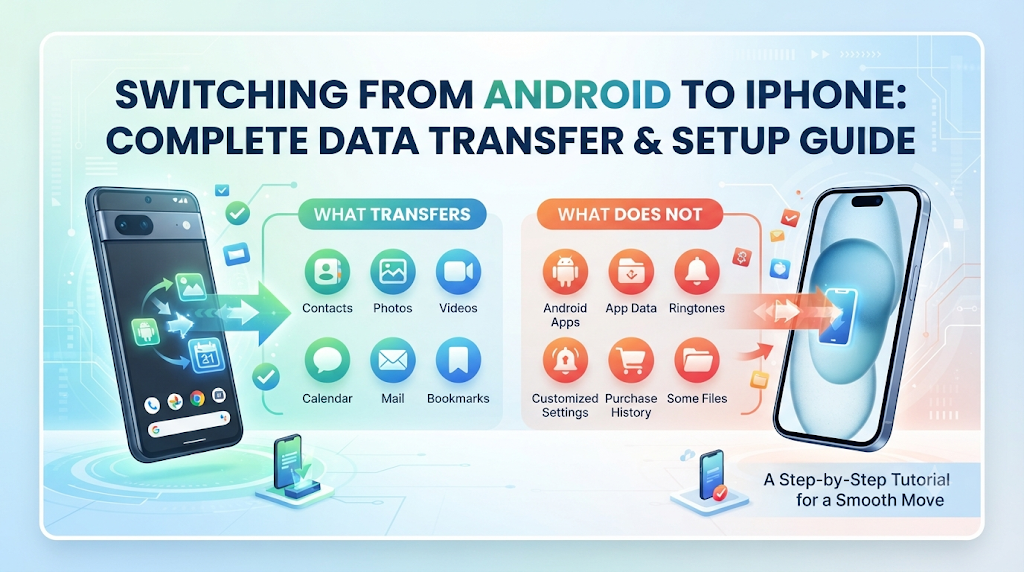
Moving from an Android smartphone to an iPhone can be exciting, but transferring personal information is often one of the biggest concerns. Your old phone may contain years of contacts, photographs, conversations, documents, application data and account information. Naturally, you want these things to remain accessible after switching devices. Questions such as whether WhatsApp conversations will disappear, whether Google Photos will remain available, or whether paid Android applications can be used on an iPhone are common among first-time iPhone users.
The good news is that switching from Android to iPhone does not require manually rebuilding everything. Apple’s Move to iOS migration process supports several important data categories, including contacts, messages, photos, videos, calendars and WhatsApp information. However, not everything transfers in the same way. Some information moves directly between devices, some becomes available after signing into an existing account, and other items require manual setup.
Understanding these differences before starting can prevent incomplete transfers and unnecessary data loss.
What Is Apple’s Move to iOS?
Move to iOS is Apple’s official, free application designed to help Android users securely transfer their personal data to a new iPhone or iPad. Available on the Google Play Store (and via direct download from Apple for devices without Google Play access), the app acts as a temporary bridge between your old Android phone and your new iPhone.
When you initiate a transfer, your new iPhone creates a private, encrypted peer-to-peer Wi-Fi network—or uses a direct USB-C / USB-C-to-Lightning cable connection on supported devices—to pull selected data directly from your Android device.
When to Use Move to iOS: You should use Move to iOS during the initial setup phase of your new iPhone, right after turning it on for the first time and selecting your language and Wi-Fi network. Apple builds this migration step directly into the iPhone’s “Apps & Data” setup screen. If you skip this step and finish setting up the iPhone, you cannot simply open Move to iOS later without erasing the iPhone and starting the setup process over.
Note: Exact supported data categories and transfer speeds depend on your Android OS version (Android 5.0 or later is generally required), the iOS version on your new iPhone, and the capabilities of both devices.
What Transfers from Android to iPhone?
When using Move to iOS alongside standard cloud synchronization, most core personal data types transfer reliably. Here is what moves over and how each category behaves:
1. Contacts
Move to iOS transfers contact names, phone numbers, email addresses, physical addresses, and contact notes directly into the iPhone’s Contacts app.
- Local vs. Cloud Contacts: If your contacts are saved locally on your Android phone’s internal storage or SIM card, Move to iOS copies them directly to your iPhone. If your contacts are already synced to a Google Account, signing into that Google Account on your iPhone will automatically sync them—even without Move to iOS. (Just avoid importing local contacts and syncing the exact same Google contacts if they are duplicates, or you may need to merge duplicates in the iPhone Contacts app afterward.)
2. SMS and MMS Messages
Standard text messages (SMS) and multimedia messages (MMS), including conversation threads and supported photo/video attachments, transfer into the built-in Apple Messages app. Keep in mind that proprietary messaging features—such as RCS (Rich Communication Services) reactions or carrier-specific chat enhancements—convert into standard message formats during migration.
3. Photos and Videos
Camera roll photos, screenshots, and videos stored in your Android device’s local gallery transfer directly to the Apple Photos app.
- Metadata & Albums: Basic metadata such as dates and locations generally stay intact so your timeline remains chronological. Some folder structures may consolidate into standard albums or Recents.
- Storage Considerations: Ensure your new iPhone has enough internal storage capacity to hold your entire local photo and video library before starting. If your photos are backed up in Google Photos rather than stored locally on your Android device, they will not transfer via Move to iOS—instead, you will access them by installing the Google Photos app on your iPhone.
4. WhatsApp Messages and Media
WhatsApp supports official cross-platform migration between Android and iPhone. Through Move to iOS, you can transfer your WhatsApp account information, profile photo, individual chats, group chats, chat history, media (photos, videos, voice notes), and settings.
- Requirements: Both phones must meet current minimum OS and app version requirements (typically Android 5.0+ and iOS 15.5+, with up-to-date versions of WhatsApp and Move to iOS), and you must use the same phone number on both devices. Follow the official in-app migration flow rather than third-party tools.
5. Calendars
Local calendar events saved on your Android device transfer to the Apple Calendar app via Move to iOS. If your events are stored in Google Calendar, simply adding your Google Account in your iPhone’s Settings will populate all your schedules, invites, and reminders automatically.
6. Email Accounts
Move to iOS transfers your email account configuration details (such as Gmail, Outlook, or Yahoo) so your iPhone prompts you to sign in during setup. Note that Move to iOS transfers the account setup, not a massive offline copy of your inbox. Once you enter your password on the iPhone, your emails synchronize directly from your email provider’s cloud servers.
7. Files and Folders
Documents, downloads, and folders saved locally in your Android device’s internal storage (such as the Downloads or Documents folders) can be selected in Move to iOS. Once transferred, these files appear inside the built-in Files app on your iPhone under “On My iPhone.”
8. Call History
Recent incoming, outgoing, and missed call logs transfer directly to the Recents tab in the iPhone Phone app. Note that this applies to standard cellular calls; call logs inside third-party apps (like WhatsApp or Messenger) stay inside those respective apps.
9. Browser Bookmarks
If you use Google Chrome on your Android phone, Move to iOS can transfer your saved web bookmarks directly into Apple Safari—provided your Chrome app on Android is updated to the latest version before you start. Alternatively, if you install Chrome on your iPhone and sign into your Google Account, all your bookmarks, open tabs, and saved passwords sync automatically.
10. Other Supported Information
Depending on your Android and iOS versions, Move to iOS can also transfer:
- Accessibility Settings: Display accommodations, text sizing, and contrast preferences.
- Display Settings: Basic light/dark mode preferences.
- Voice Memos: Compatible locally recorded audio files.
What Does NOT Transfer Automatically?
Setting realistic expectations prevents panic after setup finishes. Certain items do not transfer automatically through Move to iOS because of differences in how Android and iOS are built:
1. Paid Android Apps (and App Binaries)
Android apps are packaged as .apk or .aab files designed specifically for Android, whereas iPhones run iOS apps from the Apple App Store. Move to iOS cannot copy app files over. While Move to iOS may match free apps that exist on both stores and suggest downloading them from the App Store, paid apps must be purchased again on iOS if you want to use them. Some niche Android-only utilities may not have an iOS equivalent at all.
2. App-Specific Local Data
If an app stores progress, settings, or history only on your Android device’s internal memory without a cloud account, that data will not transfer. Conversely, apps that use their own account login (such as Spotify, Netflix, Instagram, or cloud-synced games) will restore your data as soon as you download the iOS version and sign in. Always check whether important productivity or game apps offer an account login or manual export feature before switching.
3. In-App Purchases and Store Subscriptions
Purchases made through Google Play Billing do not automatically grant ownership on the Apple App Store. However, cross-platform subscriptions tied to a service account (such as streaming services, cloud storage plans, or news memberships) usually remain active when you sign into that service’s app on your iPhone. Check your Google Play Subscriptions page before switching so you know which subscriptions are billed through Google and whether you need to manage or transition them.
4. DRM-Protected Music, Books, and Locally Stored PDFs
Music purchased through third-party stores, DRM-protected e-books, and certain media files do not automatically populate Apple Music or Apple Books.
- Streaming Libraries: If you use Spotify, YouTube Music, Apple Music, or Kindle, simply install the iOS app and sign in—your playlists and purchased books live in the cloud.
- Local Media Files: Unprotected MP3 files, EPUBs, and PDFs stored on your Android phone can be moved to your iPhone using a computer (via Finder on Mac or iTunes/Apple Devices app on Windows) or uploaded to a cloud drive like Google Drive or iCloud Drive.
5. Home Screen Layout and Widgets
Because iOS and Android handle app grids, App Library organization, and interactive widgets differently, your custom Android home screen layout, icon packs, and third-party launchers will not carry over. You will organize your iPhone home screen fresh after setup.
6. Deep System Settings and Wi-Fi Configurations
Android-specific system settings—such as custom notification channels, default app associations, developer options, and certain saved Wi-Fi networks—do not fully replicate on iOS. You should review your iPhone’s Settings app after setup to configure notifications, privacy permissions, and sound profiles to your liking.
7. Banking, Payment, and Authenticator Apps
For your security, banking apps, digital wallets (like Google Wallet), and two-factor authentication (2FA) apps (like Google Authenticator or Microsoft Authenticator) do not automatically activate on a new phone.
- Banking Apps: You must download your bank’s iOS app, log in, and complete identity verification (such as an OTP or biometric check).
- Authenticator Apps: Before wiping your Android phone, verify how your 2FA app transfers accounts. Google Authenticator allows cloud sync via a Google Account or QR code export; other authenticators may require exporting tokens or temporarily disabling and re-enabling 2FA on your accounts. Never skip this step, or you risk getting locked out of important accounts.
8. Bluetooth Pairings and Connected Accessories
Previously paired Bluetooth headphones, smartwatches, speakers, and car infotainment systems do not transfer automatically. You will need to put those accessories into pairing mode and connect them to your iPhone via Settings > Bluetooth. (Note: Some Wear OS smartwatches have limited compatibility with iOS compared to Android, so check your watch manufacturer’s iOS support.)
Android-to-iPhone Transfer Comparison Table
Use this reference table to quickly verify how each category moves from Android to iPhone:
| Data Type | Transfers Automatically? | Additional Action Required? | Important Notes |
| Contacts | Yes (via Move to iOS or Google sync) | Sign into Google Account if cloud-synced | Avoid importing local contacts twice if also syncing Google Contacts. |
| SMS Messages | Yes (via Move to iOS) | None during setup | RCS chats convert to standard SMS/MMS threads in Apple Messages. |
| Photos | Yes (local camera photos via Move to iOS) | Install Google Photos if stored in cloud | Ensure iPhone has enough local storage for camera roll photos. |
| Videos | Yes (local camera videos via Move to iOS) | Install Google Photos if stored in cloud | Large 4K video libraries increase transfer time significantly. |
| WhatsApp Chats | Yes (via Move to iOS integration) | Must initiate inside Move to iOS setup | Requires the same phone number; Google Drive backups do not restore to iOS. |
| WhatsApp Media | Yes (via Move to iOS integration) | Included in WhatsApp migration option | Keep WhatsApp updated on Android before starting migration. |
| Calendars | Yes (local via Move to iOS; cloud via Google) | Sign into Google Account for Google Calendar | Shared calendars reappear once linked accounts are signed in. |
| Email Accounts | Account setup transfers via Move to iOS | Enter account passwords after setup | Emails sync from mail servers rather than copying offline storage. |
| Files and Folders | Yes (local files via Move to iOS) | Open Apple Files app to locate | Saved under “On My iPhone” in the Files app. |
| Browser Bookmarks | Yes (Chrome bookmarks via Move to iOS) | Update Chrome on Android beforehand | Signing into Chrome on iOS also syncs bookmarks, tabs, and passwords. |
| Call History | Yes (via Move to iOS) | None | Transfers standard cellular call logs into the Phone app. |
| Free Apps | No (App Store matches suggested) | Download iOS versions from App Store | Only apps available on both stores are matched automatically. |
| Paid Apps | No | Must purchase iOS version separately | Google Play purchases do not transfer to the Apple App Store. |
| App-Specific Data | Depends on the app | Sign into app account or export manually | Cloud-backed apps restore on login; local-only app data may not transfer. |
| Music | No (streaming libraries sync via account) | Sign into streaming app or transfer via PC | Local MP3 files require computer transfer or cloud upload. |
| Books | No (cloud books sync via Kindle/etc.) | Sign into reading app or transfer files | DRM-free EPUBs can be added manually to Apple Books. |
| PDFs | Yes (if in transferred local folders) | Otherwise move via cloud drive or computer | Accessible via the Apple Files or Apple Books apps. |
| Banking Applications | No | Download iOS app and re-verify identity | Security protocols require fresh device registration. |
| Authenticator Apps | No | Export 2FA tokens or sign into cloud sync | Do not wipe your Android phone until 2FA codes work on iPhone. |
| SIM / eSIM Info | No (separate carrier process) | Insert physical SIM or activate carrier eSIM | Phone number activation is independent of Move to iOS data transfer. |
Step-by-Step: How to Transfer Data Using Move to iOS
Follow this official Move to iOS guide carefully to ensure a smooth migration:
Step 1: Prepare Both Phones
- Charge Both Devices: Plug both your Android phone and your new iPhone into power outlets. Data transfers can take anywhere from 15 minutes to over an hour depending on your photo library size.
- Connect to Wi-Fi: Enable Wi-Fi on your Android device.
- Check iPhone Storage: Verify that your new iPhone has more available storage than the total data used on your Android device.
- Update Software: On your Android phone, update Google Chrome and WhatsApp via the Google Play Store so bookmark and chat migrations work properly.
- Gather Passwords: Write down or securely access your Apple Account (formerly Apple ID), Google Account, and Wi-Fi passwords.
Step 2: Start Setting Up the iPhone
- Turn on your new iPhone and follow the initial welcome screens (Language, Region, and Quick Start—tap Set Up Without Another [Apple] Device if prompted).
- Connect to a stable Wi-Fi network and complete Face ID/Touch ID and passcode creation.
- Continue until you reach the Transfer Your Apps & Data screen, then tap From Android.
Step 3: Open Move to iOS on Android
- On your Android phone, open the Move to iOS app (download it from the Google Play Store if you haven’t already).
- Tap Continue, read the terms and conditions, and tap Agree.
- Grant the requested permissions (such as location, contacts, storage, and notifications) so the app can read and send your data.
Step 4: Connect Both Devices
- On your iPhone, tap Continue on the “Move from Android” screen. A six-digit or ten-digit one-time code will appear.
- Enter this code into the Move to iOS app on your Android phone.
- Your iPhone will create a temporary private Wi-Fi network. Tap Connect on your Android phone when prompted to join that network, and wait for the Transfer Data screen to appear. (Note: On iPhone 15 and newer models with USB-C, you can also connect both phones directly using a compatible USB-C cable for faster transfer speeds.)
Step 5: Select Data to Transfer
- On your Android device, check the boxes next to the content you want to move: Messages, Contacts, Calendar, Google Account, Photo Library, Files, WhatsApp, and any other supported categories.
- Tap Continue to begin the migration.
Step 6: Wait for Completion
- Leave both phones untouched, unlocked, and plugged into power next to each other.
- Do not switch apps, turn off the screen, or accept phone calls on the Android phone until the loading bar on the iPhone finishes completely. Even if your Android phone says the transfer is complete, wait until the iPhone’s progress bar finishes.
Step 7: Complete iPhone Setup
- Once the iPhone confirms the transfer is finished, tap Done on your Android phone and tap Continue on your iPhone.
- Sign into your Apple Account (or create a new one) and complete the remaining setup prompts.
- When prompted to add matched free apps from the App Store, accept or download them later from your App Store profile.
WhatsApp Migration: What Users Should Know
For many users, preserving years of WhatsApp conversations, family photos, and voice notes is the single most critical part of switching phones. Because WhatsApp on Android backs up to Google Drive while WhatsApp on iPhone backs up to iCloud, you cannot restore an Android Google Drive backup directly onto an iPhone. Instead, you must use the official Move to iOS transfer path.
Key Rules to Follow for WhatsApp Migration:
- Use the Same Phone Number: Your new iPhone must use the exact same phone number registered to your Android WhatsApp account. You cannot change phone numbers mid-transfer.
- Initiate During Initial Setup: WhatsApp migration can only be triggered during the Move to iOS process when setting up a factory-fresh (or freshly erased) iPhone.
- Select WhatsApp on the Transfer Screen: When Move to iOS displays the list of transferable categories, tap WhatsApp, then tap Start on your Android phone. WhatsApp will prepare and export your encrypted chat history before returning you to Move to iOS to finish the transfer.
- Activate WhatsApp After iPhone Setup: Once your iPhone reaches the home screen, download WhatsApp from the Apple App Store, open it, and log in using the same phone number. Tap Start when prompted to import your transferred chat history.
- Avoid Unofficial Third-Party Transfer Software: Never trust third-party desktop tools or unauthorized APK apps promising one-click WhatsApp transfers. They violate WhatsApp’s Terms of Service, risk corrupting your database, and expose private messages to unverified software.
- Verify Before Deleting: Even after Move to iOS completes, open WhatsApp on your iPhone and verify that recent chats and media folders loaded properly before wiping your old Android device.
What Happens to Google Services on iPhone?
Switching to an iPhone does not mean leaving the Google ecosystem behind. Virtually every major Google app is available on the Apple App Store and works seamlessly on iOS:
- Gmail: Download the Gmail app for full push notifications and label support, or add your Google Account to the built-in Apple Mail app.
- Google Contacts & Google Calendar: Add your Google Account under Settings > Apps > Contacts > Contacts Accounts (or Calendar > Calendar Accounts) to keep contacts and events synced across both Apple’s native apps and Google’s apps.
- Google Photos: Download Google Photos on your iPhone and sign in. All photos and videos previously backed up to your Google Account appear immediately without taking up local iPhone storage.
- Google Drive: Access all your Docs, Sheets, Slides, and stored files directly through the Google Drive iOS app.
- Google Maps & YouTube: Install both from the App Store and sign in to retain your saved places, subscriptions, and watch history.
- Google Chrome & Password Manager: Install Chrome on your iPhone and sign in to sync bookmarks and browsing history. You can even set Chrome as your default browser and enable Google Password Manager as an AutoFill provider under Settings > General > AutoFill & Passwords.
Keep in mind: Any offline downloads inside YouTube, Google Maps offline areas, or local files not uploaded to Google Drive will need to be re-downloaded on your iPhone.
What Happens to SIM Cards and eSIMs?
Transferring your personal files and transferring your cellular service are two completely separate steps. Move to iOS does not move your mobile plan or phone number.
- Physical SIM Cards: If both your Android phone and new iPhone have a physical nano-SIM slot, simply power off both devices, eject the SIM tray from your Android phone, and insert the SIM card into your iPhone. (Note that US models of iPhone 14 and newer do not have a physical SIM tray and rely exclusively on eSIM.)
- eSIM Transfers: If your Android phone uses an eSIM—or if your new iPhone is eSIM-only—you must transfer or reissue the eSIM through your mobile network operator. While Apple supports eSIM Quick Transfer between iPhones, converting an Android eSIM to an iPhone eSIM generally requires contacting your carrier or using your carrier’s official mobile app.
- Important Note for Users in India: Major Indian telecom operators (such as Airtel, Jio, and Vi) follow strict regulatory security checks for eSIM activation and device transfers. Typically, converting a physical SIM or migrating an existing Android eSIM to a new iPhone requires initiating an eSIM request via SMS, IVR verification, or the operator’s official app (like MyJio or Airtel Thanks), followed by scanning a carrier-issued QR code. Furthermore, SMS services on a newly activated eSIM may be temporarily restricted for 24 hours as a standard anti-fraud measure—keep this in mind when verifying banking apps or WhatsApp via OTP. Always check your specific carrier’s current eSIM guidelines before deactivating your Android SIM.
What to Do If You Already Set Up Your iPhone
If you already completed the initial setup on your new iPhone and skipped the Move to iOS screen, you have two choices:
Option 1: Erase the iPhone and Start Over (Recommended for Full Migration)
If you want to transfer SMS messages, call history, local photos, and WhatsApp chats using Move to iOS, you must reset the iPhone to factory settings:
- Back up any new photos or files you may have already created on the iPhone.
- Go to Settings > General > Transfer or Reset iPhone.
- Tap Erase All Content and Settings and follow the prompts.
- When the iPhone restarts at the Hello screen, follow the Move to iOS steps from the beginning.
Option 2: Move Data Manually Without Erasing
If you do not want to erase your iPhone—and do not need to transfer SMS text history or WhatsApp via Move to iOS—you can bring over most essentials manually:
- Contacts & Calendars: Sign into your Google Account in the iPhone Settings app.
- Photos & Videos: Back up your Android gallery to Google Photos, then install Google Photos on your iPhone.
- Files & PDFs: Upload folders to Google Drive or iCloud Drive from your Android phone, then download them via the Files app on your iPhone.
Common Transfer Problems and Their Solutions
Even well-prepared migrations occasionally hit snags. Here is how to safely resolve the most frequent issues:
- Move to iOS Disconnects or Drops Connection
- Cause: Interference from mobile data, Smart Network Switch features on Android, or power-saving modes.
- Solution: Turn off mobile data on your Android phone, disable “Smart Network Switch” or “Adaptive Connectivity” in Android Wi-Fi settings, keep both phones plugged into chargers, and keep them right next to each other.
- Transfer Appears Stuck at 1 Minute Remaining
- Cause: Large photo/video libraries or WhatsApp media archives take time to index and finalize on the iPhone.
- Solution: Do not cancel the transfer prematurely. Give it an extra 15–30 minutes if you have tens of gigabytes of media. Only restart if the progress bar has not moved at all for over an hour.
- Insufficient Storage on iPhone
- Cause: Your Android data exceeds the free space on your new iPhone.
- Solution: Uncheck large categories (like Photos/Videos) during Move to iOS and rely on Google Photos cloud access instead, or delete unnecessary videos on your Android phone before retrying.
- Contacts Are Missing After Setup
- Cause: Contacts were saved inside a secondary Google account or SIM card that wasn’t synced.
- Solution: Check Settings > Apps > Contacts > Contacts Accounts on your iPhone to ensure all relevant email accounts are added and Contacts toggling is enabled.
- WhatsApp Chats Do Not Appear
- Cause: WhatsApp was skipped during Move to iOS, or you logged into WhatsApp with a different phone number.
- Solution: Confirm you used the exact same phone number. If WhatsApp wasn’t selected during Move to iOS, you will need to erase the iPhone and run Move to iOS again while your chats are still intact on your Android device.
- Transfer Stops After an Incoming Call
- Cause: Receiving a cellular call interrupts the temporary Wi-Fi bridge on Android.
- Solution: Remove the SIM card from your Android phone (or enable Airplane Mode and turn only Wi-Fi back on) before starting Move to iOS.
- eSIM Activation Fails
- Cause: Incomplete carrier verification or temporary SMS cool-down periods.
- Solution: Ensure your iPhone is connected to stable Wi-Fi during eSIM installation and contact your mobile operator’s customer support to verify eSIM provisioning status.
After-Transfer Verification Checklist
Before you reset or sell your old Android phone, walk through this Android to iPhone migration checklist:
Personal Information
- [ ] Open the Contacts app and search for a few recent contacts to confirm names and numbers transferred.
- [ ] Open Messages and verify that key SMS threads are present.
- [ ] Check the Phone app’s Recents tab for call history.
- [ ] Open Calendar and verify upcoming appointments and synced Google calendars.
- [ ] Open Mail or Gmail and verify you can send and receive emails.
Media and Files
- [ ] Open Photos and scroll to your oldest and newest photos/videos to verify completeness.
- [ ] Open the Files app and check “On My iPhone” for transferred documents and PDFs.
- [ ] Confirm any local MP3s or e-books have been manually moved if needed.
Applications and Accounts
- [ ] Download essential iOS apps from the App Store.
- [ ] Open WhatsApp and verify your chat history, groups, and media are intact.
- [ ] Log into your banking apps and verify account access.
- [ ] Open your authenticator app(s) and test generating a 2FA login code before wiping your Android device.
- [ ] Review active subscriptions in Google Play so you aren’t double-billed.
Connectivity and Security
- [ ] Confirm your physical SIM or eSIM is active by making a test call and sending an SMS.
- [ ] Test mobile data (4G/5G) with Wi-Fi turned off.
- [ ] Pair Bluetooth headphones, smartwatches, and car audio systems.
- [ ] Confirm Face ID / Touch ID, a strong Device Passcode, and Find My iPhone are enabled under Settings.
Common Mistakes to Avoid
- Wiping Your Android Phone Too Early: Keep your old Android phone untouched for at least a few days after switching until you are 100% certain every photo, message, and 2FA code works on your iPhone.
- Assuming Google Drive Backups Restore WhatsApp on iPhone: Google Drive backups only work on Android. Always use Move to iOS for cross-platform WhatsApp history.
- Forgetting Authenticator Apps: Factory resetting your Android phone before transferring Google Authenticator, Authy, or Microsoft Authenticator codes can permanently lock you out of financial and email accounts.
- Leaving Mobile Data Enabled During Transfer: Active cellular data or incoming calls frequently break Move to iOS Wi-Fi connections. Use Airplane Mode with Wi-Fi turned on.
- Assuming a SIM Card Holds All Your Data: Modern SIM cards store very little information. Moving your SIM moves your phone number—not your photos, apps, or messages.
Frequently Asked Questions (FAQs)
1. Can I transfer everything from Android to iPhone?
No single tool transfers 100% of an Android phone’s contents. Move to iOS transfers core personal data—contacts, messages, camera photos and videos, calendars, local files, call logs, and WhatsApp chats—while apps, settings, banking logins, and DRM-protected media require separate downloads or sign-ins.
2. Does Move to iOS transfer WhatsApp chats?
Yes. Move to iOS includes an official WhatsApp migration option that transfers your chat history, group chats, profile photo, and media to your iPhone, provided both devices meet OS requirements and you use the same phone number.
3. Can I transfer photos and videos without losing quality?
Yes. Move to iOS transfers original camera photos and videos directly from your Android phone’s storage to the Apple Photos app without compressing them.
4. Will my Android apps automatically install on iPhone?
Android app files cannot run on iOS. However, Move to iOS identifies free apps that are available on both the Google Play Store and the Apple App Store and lets you download their iOS versions during setup.
5. Can I transfer paid Android applications to iPhone?
No. Purchases made on the Google Play Store are separate from the Apple App Store. If you want to use a paid app on your iPhone, you will need to purchase the iOS version from the App Store.
6. What happens to my Google account after switching?
Your Google Account remains completely active and unchanged. You can download Gmail, Google Photos, Google Drive, Google Maps, Chrome, and YouTube on your iPhone and sign in to access all your cloud data.
7. Can I transfer Android SMS messages to iPhone?
Yes. Move to iOS transfers your SMS and MMS message threads directly into the Apple Messages app during initial iPhone setup.
8. Can I use Move to iOS after setting up my iPhone?
Not without erasing the iPhone first. Move to iOS only runs during the initial setup screen. If you already set up your iPhone, you must either erase it via Settings > General > Transfer or Reset iPhone to use Move to iOS, or transfer your data manually using cloud services.
9. Will my SIM card and phone number transfer automatically?
No. Moving your phone number requires physically moving your nano-SIM card into the iPhone or working with your mobile carrier to transfer or activate an eSIM on the new device.
10. Should I keep my old Android phone after transferring data?
Yes. Hold onto your old Android phone for at least a week after completing your transfer. This gives you a safe fallback to retrieve missed files, re-verify banking apps, or export 2FA tokens before you factory reset, trade in, or recycle the old device.
Conclusion
Switching from Android to iPhone can be straightforward when you understand what the migration process actually supports. Move to iOS handles several important categories, including contacts, messages, photographs, videos, calendars and supported WhatsApp information. Google services also make it possible to continue accessing much of your existing cloud-based information. However, applications, purchases, locally stored information, music, books, PDFs and certain security settings may require additional work.
The safest approach is to prepare both devices, follow Apple’s official migration instructions, configure your important accounts and verify every essential category before resetting your old phone.